
How SEO Services in Epping Help You Understand Search Traffic
A list of target keywords shows what you want your website to be found for. Search Console shows how your website actually appeared in Google Search during a selected period. Comparing the two can reveal useful differences between the terms you planned to target and the language customers use.
A Detailed Review Can Help You
- Identify the queries generating the most clicks.
- See which pages appear for local service searches.
- Find product specifications or customer questions worth covering.
- Spot relevant queries with high impressions and few clicks.
- Choose which pages to update first.
- Track whether search visibility changes after a page update.
1. How Do You Open the Search Results Report?
Sign in to Google Search Console and select the property that covers your website. Open Performance → Search results, then check the search type and date range before reviewing the data. Search Console Help
Suggested Report Settings
- Property — Select the website or version of the website you want to review.
- Search type — Choose Web for a review of standard web search performance.
- Date range — Start with the last three months. Use a shorter period if you’re checking a recent change.
- Metrics — Enable total clicks, total impressions, average CTR and average position.
- Report tab — Select Queries to see the reported search terms.
2. Which Queries Are Bringing Clicks to Your Website?
In the Queries tab, sort the Clicks column from highest to lowest. Start with queries that have at least one click. These are the visible search terms for which someone clicked through from Google Search during your selected period. Some queries are withheld for privacy, so the table may show fewer clicks than the chart total. Search Console Help
What to Record for Each Query
- The search query as it appears in the report.
- Clicks and impressions for the selected period.
- The page or pages that appeared for the query.
- Whether the term includes your business name, a service, a product or a location.
- Whether the search is relevant to what your business offers.
3. What Do Clicks, Impressions, CTR and Average Position Mean?
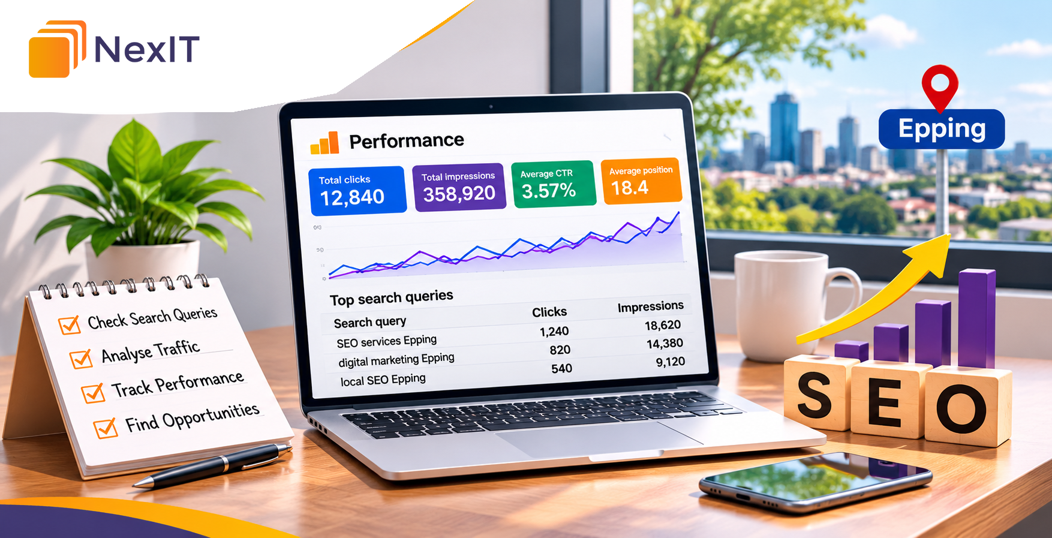
Read the metrics together. A query with 300 impressions and six clicks has a 2% click-through rate. To decide whether it needs attention, check its average position and the page that appeared. A low click-through rate can warrant different follow-up depending on how prominently the result appeared. Search Console Help
Search Console Metrics to Review
| Metric | What it tells you |
| Clicks | How many clicks your site received from Google Search. |
| Impressions | How often your site appeared in Google Search results. |
| CTR | The percentage of impressions that resulted in a click. |
| Average position | The average position of the highest result from your site for the grouping being measured. |
4. How Can You Find the Page That Appears for a Query?
Click a query in the Queries table to apply it as a filter. Then open the Pages tab. This shows which reported URLs appeared for that query and how many impressions and clicks each received. Search Console Help
Questions to Ask When Reviewing the Pages
- Does the page cover the service or product people searched for?
- Can customers quickly see whether you serve Epping?
- Is the homepage appearing for a query that a dedicated service page could answer in more detail?
- If several pages appear, does each serve a distinct purpose?
- Is the next step clear for someone ready to request a quote?
5. How Can You Find the Queries Bringing Clicks to One Page?
Start with the Pages tab and click the URL you want to review. Then open Queries to see the reported searches associated with that page. This is useful when you want to review an Epping service page, a product category or a recently updated article. Search Console Help
Pages Worth Reviewing Individually
- An Epping service or location page.
- A product category that generates quote requests.
- A high-impression page receiving relatively few clicks.
- A page that has recently lost search clicks.
- A blog post that answers a question customers regularly ask.
6. How Should You Separate Branded and Non-Branded Searches?
Branded searches include your business name or a recognisable variation. Non-branded searches describe a product, service or problem without naming your business. Reviewing the groups separately helps you see how much reported traffic comes from people searching for your brand and how much comes from more general searches.
Examples to Compare
| Search type | Example query |
| Branded | nexit solutions |
| Branded with a service | nexit solutions seo |
| Non-branded service | seo services epping |
| Non-branded question | how to find website search queries |
Use a query filter for your brand name and account for common spelling variations where relevant. Filtered totals can differ from site-wide totals because Search Console excludes anonymised queries when a query filter is applied. Search Console Help
7. How Can You Find Queries That Mention Epping?
Add a Query filter and choose the option for queries containing Epping. Review the results by clicks and impressions, then select individual terms to check which pages appeared. Search Console Help
Local Query Patterns to Review
- Service and suburb — commercial electrician epping
- Product and suburb — industrial shelving epping
- Product and location qualifier — warehouse shelving epping vic
- Business name and suburb — Searches combining your brand with Epping.
The filter finds searches that explicitly mention Epping. To review broader searches such as warehouse shelving near me, remove the query filter and check the relevant page separately. Search Console’s location dimension reports by country, so an Australia filter cannot identify which users searched from Epping. Search Console Help
8. How Should You Review Queries With High Impressions and Few Clicks?
Start with terms relevant to your business. Check their average position, which page appears and whether the page title clearly communicates what the customer will find. For a local service query, confirm that the page explains the service and its coverage early enough for visitors to find it easily. Search Console Help
Useful Checks Before Changing a Page
- Does the query suggest someone wants information, a supplier or a quote?
- Does the page meet that need?
- Is the title specific to the product or service?
- Does the meta description accurately summarise the page?
- Is there enough data to justify an update?
9. What Can Longer Search Queries Tell You?
Longer queries often reveal the detail a customer wants before making an enquiry. An Epping shelving supplier might see searches about load capacity, installation or delivery. Group related terms and check whether the relevant page answers the underlying question.
Content Gaps to Look For
- Product dimensions, load ratings or compatibility.
- Installation requirements and site access.
- Delivery or collection options.
- Information needed to request a quote.
- Genuine questions about service coverage.
For example, if a category page appears for searches about shelving load capacity, review whether it directs visitors to verified load ratings for the specific products they’re considering.
10. How Should You Compare Query Performance Over Time?
Use the date comparison option to compare two periods of equal length, such as the latest complete 28 days and the preceding 28 days. Keep the search type and other relevant filters consistent. For seasonal businesses, a comparison with the equivalent period last year can provide additional context. Search Console Help
Changes to Investigate
- Clicks and impressions both fell — Check whether search demand, visibility or both changed.
- Impressions grew while clicks stayed flat — Check which queries gained visibility and where the site appeared for them.
- Clicks moved to a different page — Review whether the new page better matches the query.
- Brand clicks increased — Check non-branded terms separately to see whether service and product searches also improved.
11. Can Search Console Show Which Queries Generated Enquiries?
Use Search Console to review search queries and clicks. If your GA4 setup tracks enquiries, review organic landing pages and their recorded form submissions or other enquiry events there. Compare the two at the landing-page level. For example, Search Console can show which queries generated clicks to your Epping service page, while GA4 can show which tracked actions occurred during organic visits that started on that page. This comparison cannot attribute a specific enquiry to an individual search query. Search Console Help
What to Include in Your Review
- The landing page URL.
- Relevant queries and clicks from Search Console.
- Organic sessions and tracked enquiry events from GA4, where available.
- Changes you made to the page during the review period.
A Practical Search Query Review Table
| Review area | Question to ask | Action to consider |
| Top queries by clicks | What are people searching before they reach the site? | Keep the information they came for easy to find. |
| Epping searches | Does the page make its local coverage clear? | Add relevant service-area details where accurate. |
| High impressions and few clicks | Does the result address the likely search intent? | Check position, title and page relevance before editing. |
| Product questions | Does the page answer the specification or delivery question? | Add verified details or link to the relevant product information. |
| Multiple pages for one query | Does each page give customers something distinct? | Clarify page purpose and internal links where needed. |
Hypothetical Example: Reviewing Search Queries for an Epping Supplier
An industrial shelving supplier reviews three months of Search Console data. Its category page receives 18 clicks from industrial shelving epping. The same page records 240 impressions and two clicks for warehouse shelving load capacity.
Before the Review
The category page lists shelving types, but buyers need to open individual product documents to find load ratings. The page also gives little information about what customers should provide when asking for a quote.
After the Review
The supplier adds links to verified load ratings for each product range and explains what information it needs to quote, including bay dimensions and expected loads. It records the update date and compares clicks and impressions for the same queries over equivalent periods.
Common Mistakes to Avoid
Treating Impressions as Website Visits
Use clicks to identify searches that brought people through from Google Search. Impressions show when a result appeared. Search Console Help
Treating Average Position as a Fixed Ranking
Average position combines observations across the selected report scope. Search results can vary by time, location and device. Search Console Help
Expecting the Queries Table to Show Every Search
Search Console withholds some queries for privacy and limits the rows it shows. Use the visible queries to find patterns, and check the chart for overall clicks and impressions. Search Console Help
Updating a Page After One Unusual Day
Check a longer period and record the date of each change. This gives you a clearer basis for comparing performance.
A Practical Checklist Before Updating Your Website
- Select the correct property, search type and date range.
- Sort the Queries table by clicks.
- Check which pages appear for your priority queries.
- Review branded, non-branded and Epping-related searches separately.
- Read impressions, CTR and average position alongside clicks.
- Identify the customer question or content gap each update will address.
- Record the pages changed and the dates for your next comparison.
Discuss SEO Services in Epping With NexIT Solutions
If you’re looking for SEO services in Epping, share your priority pages and a Search Console export with NexIT Solutions. Include the date range, your main services and the types of enquiries you want to attract. This gives the team a starting point for reviewing which searches bring people to your website and where clearer page content could help.